

Blood Glucose Monitoring System
Contour Next GEN Quick Reference Guide
Works with free Contour®Diabetes app.
Warranty information and online meter registration available at www.diabetes.ascensia.com/warranty or call our Customer Service.


Uses only Contour®Next blood glucose test strips.
Need Help?
For more information, go to www.diabetes.ascensia.com.
Customer Service is available Monday through Sunday, 8:00 am through 12:00 Midnight, Eastern Time.
Your meter is preset and locked to display results in mg/dL. If your result is in mmol/L, contact Customer Service: 1-800-348-8100.
Read your Contour Next GEN user guide for the Intended Use of the meter and a list of Important Safety Information, Warnings, Limitations, and Precautions.
Your Contour®Next GEN meter

NOTE: Your meter comes with a pre-set time, date, and target range. You can change these features in Settings.
CAUTION: Your Contour Next GEN meter works only with Contour Next blood glucose test strips and Contour®Next control solution.
Turn the Meter On and Off
- Press and hold the OK button for about 3 seconds until your meter turns On or Off.
- Inserting a test strip into the meter will also turn the meter On.
- Press OK twice when the meter is Off to turn On the white test strip port light.
Home Screen
The Home screen has 2 options: Logbook and Settings.
- Press the ▼ button until the option you want is blinking.
- To see your past readings and Averages, press the OK button while Logbook is blinking. See Logbook and View Averages.
- To change your Settings, press the OK button when Settings is blinking. See Settings.
For a table of symbols, see Your Meter Display below.
NOTE: When a symbol is blinking, you can select it.
Fingertip Testing
- Always wash your hands with antibacterial soap and water and dry them well before and after testing or handling the meter, lancing device, or test strips.
- All parts of this kit are considered biohazardous and can potentially transmit infectious diseases.
- If your meter is being operated by a second person who is providing testing assistance to you, the meter and lancing device should be disinfected prior to use by the second person.
- Prepare the lancing device. Refer to your lancing device insert for detailed instructions.
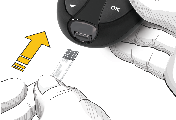
- Insert the grey square end of a new test strip firmly into the test strip port until the meter beeps.
The meter turns On and displays the Apply Blood screen. The meter is now ready to test a blood drop.
- Use your lancing device to get a drop of blood from your fingertip.
- Stroke your hand and finger toward the puncture site to form a drop of blood.
- Immediately touch the tip of the test strip to the drop of blood.
CAUTION: The lancing device usually provided with your kit is intended for use by a single patient.
For instructions on removing the lancet from your lancing device, see the lancing device insert.
Second-Chance® sampling
If the meter beeps twice and the screen displays a blinking blood drop with a plus sign, the test strip does not have enough blood. Do not remove the strip. You have 60 seconds to apply more blood to the same test strip.

Meal Markers
When Meal Markers are On, you can mark readings as Fasting, Before Meal, or After Meal. See Turn Meal Markers On.
Select a Meal Marker During a Blood Glucose Test
| Meal Marker Symbols | |
|---|---|
 | Fasting |
 | Before Meal |
 | After Meal |
 | No Mark |
NOTE: You must do a blood glucose test before you can select a Meal Marker. You cannot select a Meal Marker in Settings.
- Test your blood glucose. See Fingertip Testing.
- Do not remove the test strip until you select a Meal Marker. A Meal Marker blinks on the blood glucose result screen.
- If the blinking Meal Marker is the one you want, press the OK button. To select a different Meal Marker, press the ▲ or ▼ button.
- When the Meal Marker you want is blinking, press the OK button.
NOTE: If you do not select a Meal Marker within 3 minutes, the meter turns Off. Your blood glucose reading is stored in the Logbook without a Meal Marker.
smartLIGHT™ target range indicator
The meter displays your result with the units, time, date, and target indicator:
 | Above Target Range |
 | In Target Range |
 | Below Target Range |
The test strip port light displays a color that indicates if your reading is above, in, or below your personal Target Range.
Logbook
- To turn on your meter, press and hold the OK button for 3 seconds. The Logbook is blinking.
- To view your Logbook entries, press the OK button to enter the Logbook.
- To scroll through the Logbook, press the ▲ or ▼ button. To scroll quickly through entries, press and hold the ▲ or ▼ button.
- To exit the Logbook and return to the Home screen at any time, press the OK button.
View Averages
- To enter the Logbook from the Home screen, press the OK button while the Logbook is blinking.
- To view your Averages, press the ▲ button from the first Logbook screen.
- To scroll through your 7-, 14-, 30-, and 90-day Averages, press the ▲ button.
- To return to your readings, press the ▼ button on the 7 d Avg (7-day Average).
- To exit Averages and return to the Home screen at any time, press the OK button.
Settings
You can change the settings for:
- Date: Change format and date.
- Time: Change format and time.
- Meal Markers: Turn Meal Markers On or Off.
- Bluetooth® wireless technology: Turn Bluetooth wireless functionality On or Off.
- smartLIGHT feature: Turn smartLIGHT feature On or Off. See smartLIGHT target range indicator.
- Target Ranges: View and change Target Ranges.
- Sound: Turn Sound On or Off.
- Reminder: Turn the Reminder feature On or Off.
NOTE: To change the meter time and date, see the user guide.
To change meter settings
- To highlight the Settings symbol from the Home screen, press the ▼ button.
- When the Settings symbol is blinking, press the OK button to enter Settings.
- To scroll through Settings options as shown in the image, press the ▲ or ▼ button until the symbol you want is blinking.
- Press the OK button to select the blinking symbol.
- To edit a Setting, press the ▲ or ▼ button. You can turn the Setting On or Off, or change the value.
- To accept the change and return to the Home screen, press the OK button.
Set Overall Target Range
Discuss your Target Range settings with your health care professional.
If Meal Markers are Off, you can set only 1 Target Range. To set Before Meal and After Meal Target Ranges, see the Contour Next GEN user guide.
- To highlight the Settings symbol from the Home screen, press the ▼ button.
- When the Settings symbol is blinking, press the OK button to enter Settings.
- To scroll to the Target Range symbol, press the ▲ or ▼ button. When the symbol is blinking, press the OK button.
- To set the blinking Overall Low Target, press the ▲ or ▼ button, then press the OK button.
- To set the blinking Overall High Target, press the ▲ or ▼ button, then press the OK button.
Turn Meal Markers On
- To highlight the Settings symbol from the Home screen, press the ▼ button.
- When the Settings symbol is blinking, press the OK button to enter Settings.
- To scroll to the Meal Marker symbols, press the ▲ or ▼ button.
- When the Meal Marker symbols are blinking, press the OK button.
- Press the ▲ or ▼ button until On is blinking, then press the OK button.
NOTE: With Meal Markers On, you can set Before Meal and After Meal Target Ranges (see the Contour Next GEN user guide). You can also set a Reminder.
Turn Reminder Feature On
When Meal Markers are On, you can set a Reminder to test your blood glucose after you mark a reading as Before Meal. If Meal Markers are Off, see Turn Meal Markers On in this guide.
- To highlight the Settings symbol from the Home screen, press the ▼ button.
- When the Settings symbol is blinking, press the OK button to enter Settings.
- To scroll to the Reminder symbol, press the ▲ or ▼ button.
- When the Reminder symbol is blinking, press the OK button.
- Press the ▲ or ▼ button until On is blinking, then press the OK button.
Set a Reminder
- Make sure the Reminder feature is On in Settings.
- Mark a blood glucose reading as a Before Meal reading, then press the OK button.
- To scroll from 2 hours to 0.5 hours by half-hour intervals, press the ▲ or ▼ button.
- To set the Reminder, press the OK button. The screen returns to the Before Meal reading. The Reminder symbol displays to confirm the Reminder is set.
To exit from Settings and return to Home
- Press the ▲ or ▼ button until the Settings symbol is blinking.
- Press the OK button.
If you are in a Setting such as Date and you need to exit, press the OK button repeatedly until you get back to the Home screen.
LO and HI Results

LO Results
If your meter does not display a value and displays the LO screen, your blood glucose reading is under 20 mg/dL. Contact your health care professional immediately.

HI Results
If your meter does not display a value and displays the HI screen, your blood glucose reading is over 600 mg/dL. Wash your hands or the test site and repeat the test with a new strip. If the meter again displays the HI screen, follow medical advice immediately.
To turn the meter Off, remove the test strip.
Your Meter Display
| Symbol | What It Means |
|---|---|
 | Your Logbook |
 | Meter Settings |
 | smartLIGHT target range indicator (Yellow=Above Target; Green=In Target; Red=Below Target) |
 | A Target Range or Target Range setting |
| Blood glucose test result is above Target Range |
| Blood glucose test result is in Target Range |
| Blood glucose test result is below Target Range |
| Fasting marker; used when testing after fasting (no food or drink for 8 hours, except water or non-caloric beverages) |
| Before Meal marker; used when testing within 1 hour before a meal |
| After Meal marker; used when testing within 2 hours after the first bite of a meal |
| No Meal marker selected |
 | Reminder feature |
 | Sound feature |
 | Indicates the Bluetooth® wireless setting is On; the meter can communicate with a mobile device |
 | Indicates a meter error |
 | Batteries are low and need to be changed |
 | 7-, 14-, 30-, and 90-day averages |
 | Total number of blood glucose readings used to calculate averages |
 | Control solution test result |
 | Add more blood to same test strip |
The Contour Diabetes app allows you to transfer results from your meter to your compatible smartphone or tablet. See the meter user guide for instructions and features.
Contact Information
Distributed by:
Ascensia Diabetes Care US Inc.
5 Wood Hollow Road
Parsippany, NJ 07054
www.diabetes.ascensia.com
For in vitro diagnostic use.
For information on patents and related licenses, see www.patents.ascensia.com.
Ascensia, the Ascensia Diabetes Care logo, Contour, Microlet, the No Coding logo, Second-Chance, the Second-Chance sampling logo, Smartcolor, and Smartlight are trademarks and/or registered trademarks of Ascensia Diabetes Care Holdings AG.
Apple and the Apple logo are trademarks of Apple Inc., registered in the U.S. and other countries. App Store is a service mark of Apple Inc.
The Bluetooth® word mark and logos are registered trademarks owned by Bluetooth SIG, Inc., and any use of such marks by Ascensia Diabetes Care is under license.
Google Play and the Google Play logo are trademarks of Google LLC.
All other trademarks are properties of their respective owners. No relationship or endorsement should be inferred or implied.

Prefer to print or save offline?
Download CONTOUR® NEXT GEN Quick Reference Guide (PDF)